Add live Google reviews or YouTube videos to Odoo
Drop an Embed Code block on any Odoo Website page, paste the TileSet snippet and save, and the page shows live Google reviews or YouTube videos.
Odoo’s website builder has an Embed Code block, so TileSet needs no app, no Studio and no developer mode. We tested these steps on Odoo 20. The Embed Code block is part of the standard Website app, so they apply on Odoo Online, Odoo.sh and your own server.
Add it to a page
- In TileSet, build your widget and copy the snippet: a script tag and a
div. - In Odoo, open the page on your website and click Edit.
- In the Blocks tab, under Inner Content, drag Embed Code to where the feed should go. It goes inside a section, so on an empty page drop a section (such as a Text block) first.
- With the block selected, open the Style tab and click Edit next to Code. Replace the sample with your snippet and click Save in that window.
- Click Save at the top of the editor. The feed appears on the page.
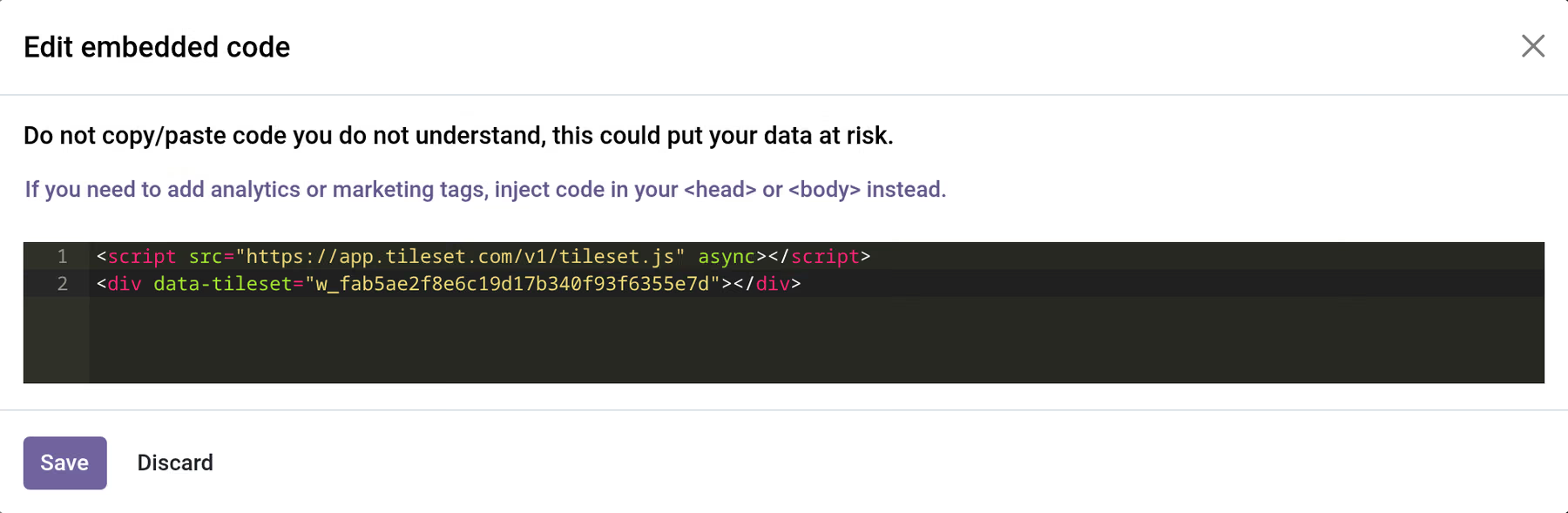
Before that first save the block looks empty, because Odoo does not run scripts in an Embed Code block while you edit it. Once the page is saved, the widget shows in the editor too.
Several feeds, or the whole site
Put the script tag once for the whole website: in the editor, open the Theme tab, find Code Injection and click <head> and </body>. Paste the script tag into the second box, the code added before </body>, and save. Each Embed Code block then only needs the div.
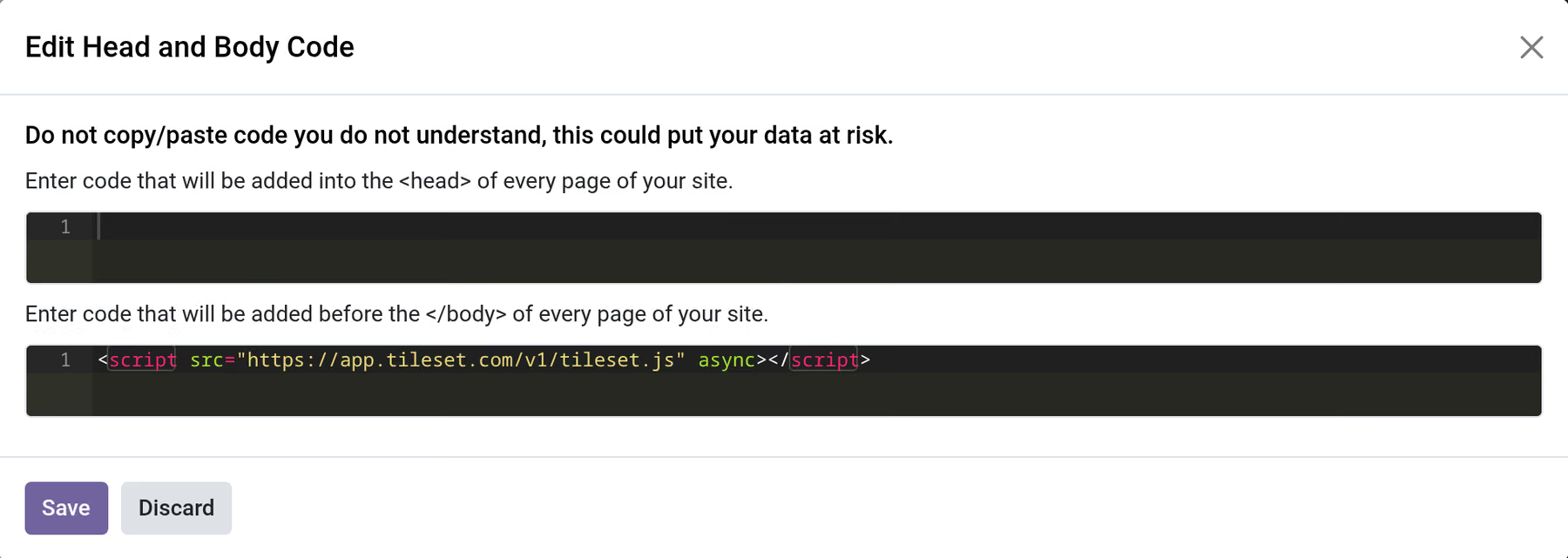
Code injection belongs to one website. If your database runs several websites, switch to each one in the top bar and add the script there as well.
Product pages and blog posts
- A blog post: drop Embed Code into the post’s text, the same as on a page.
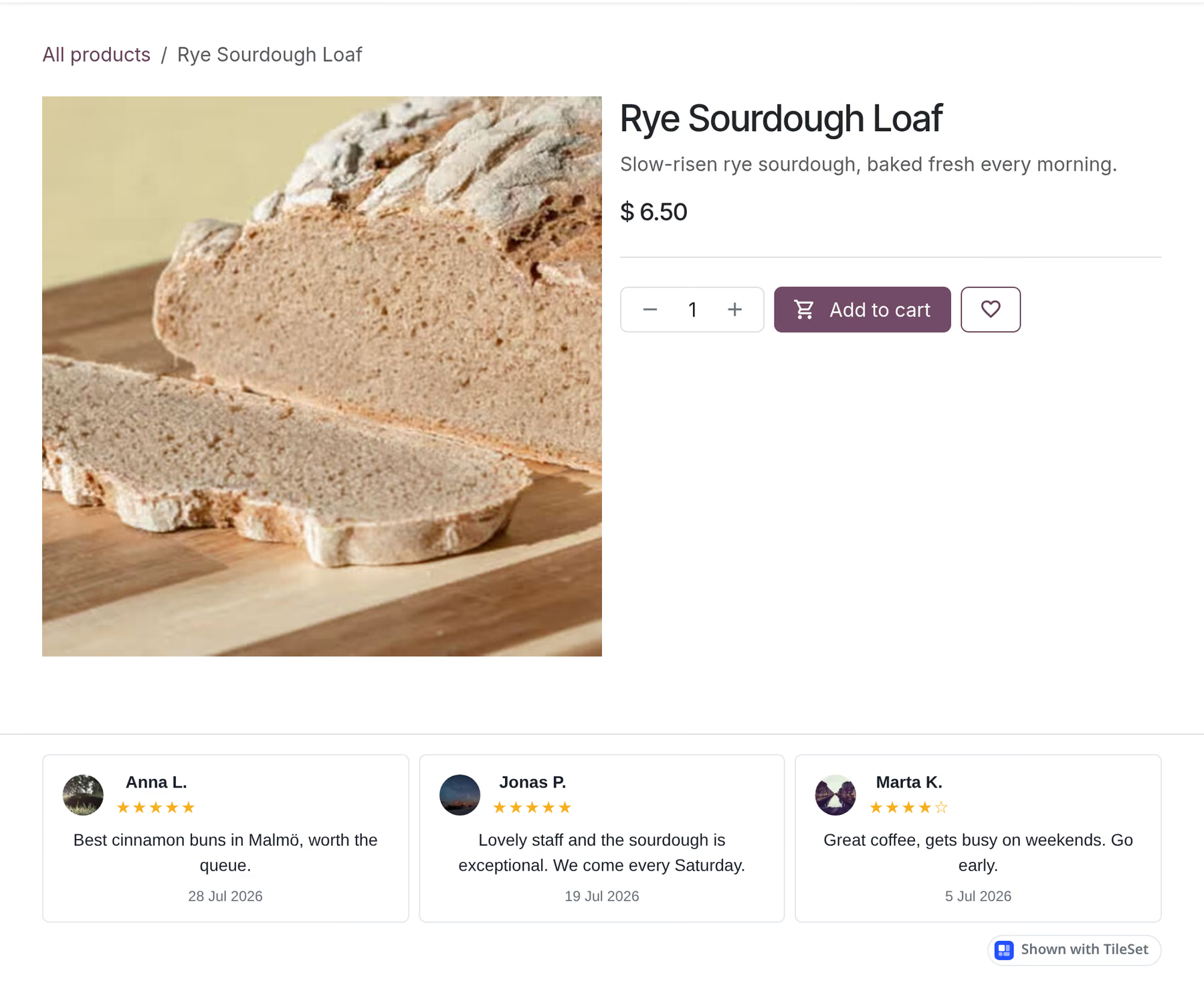
- One product: drop it into that product’s description area, which sits under Add to cart in the default layout. Only Administrators can put an Embed Code block there; for other website editors Odoo cleans that field of code and greys the block out. Ask an Administrator, or use the next option.
- Every product: drop it into the area marked “Drag blocks here to add them on all products”. A Google reviews wall there shows on every product page.
Check it works
Open the published page in a private window, so you see what a visitor sees. Or let TileSet look: paste the page address into Check my page on the widget’s Install tab, or ask your AI agent to run the same check. Odoo writes the Embed Code block and the code injection into the page’s HTML on the server, so the check reads the script tag and the div straight from the page and tells you whether the widget serves items.
If the feed does not show
- The block shows your code as text. It went into a text area, not an Embed Code block. Delete it and paste the snippet into an Embed Code block.
- The script is gone after saving. It was pasted into a place Odoo cleans of code, such as a product description by someone who is not an Administrator. Use an Embed Code block on the page, or put the script in Code Injection.
- You see an old version of the page. If a CDN or a proxy sits in front of your Odoo website, purge its cache and check again in a private window.
- The cookie bar. With the cookie bar on and “Block 3rd-party domains” set, Odoo holds back scripts from a list of tracking domains until the visitor accepts. TileSet is not on that list. If someone added it to the website’s own blocked domains, take it out.
- The widget id. The
divneeds the real id from your dashboard, starting withw_. A placeholder renders nothing. - A content security policy. Odoo sets none on website pages by default. If your host or proxy adds one, see what it must allow.