How to Embed Your X (Twitter) Feed on Any Website
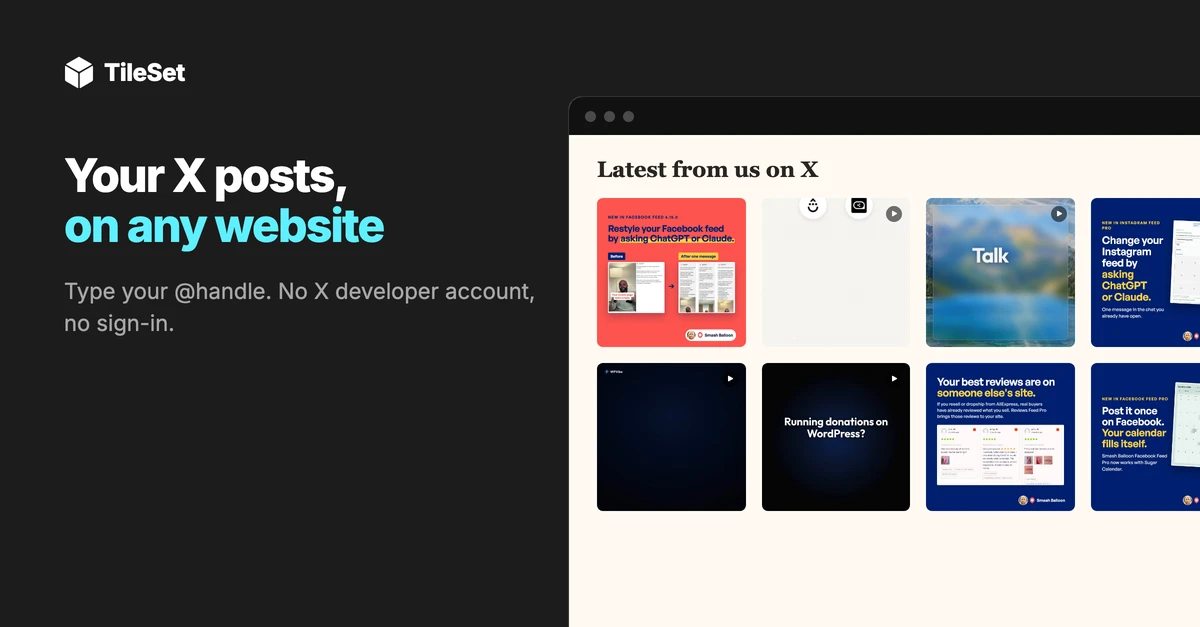
If you share news on X, a feed on your website lets those same posts show up there too, without copying anything across by hand. You post once, and your site picks up the new post at its next update.
I'm on the Smash Balloon team that builds TileSet, and before writing this I set it up myself using Smash Balloon's own X account, @smashballoon. I'll walk you through exactly what I did, what each setting means, and the one thing I'd change if your visitors mostly browse on their phones.
How do I embed my X feed on my website?
TileSet, from the Smash Balloon team, is a hosted widget that shows your X (Twitter) posts on any website. "Hosted" just means TileSet does the work of fetching your posts and keeping them up to date, so nothing runs on your own server.
You type your @handle, choose how you'd like the posts to look, and paste two lines of code into your site. You don't need an X developer account, an API key or your X password. It works on Wix, Squarespace, Shopify, Webflow, WordPress and plain HTML, and it's included on every TileSet plan, the free one too.
3 ways to embed X posts on a website
There are three ways to get your X posts onto a website. Each one is a different trade between how quick it is to set up and how much looking after it needs later.
| X's own embed code | Build it with the X API | TileSet Recommended | |
|---|---|---|---|
| What do you need to start? | Just your X profile link | An X developer account and a payment card | Just your @handle |
| What does it cost? | Nothing | X charges per post fetched: $0.001 each for your own posts, $0.005 for other accounts | Free plan, paid plans from $9 a month |
| Do new posts show up on their own? | Yes, when the timeline loads | Only if you build and host the refresh | Yes, on the schedule you pick |
| Can it match your site's design? | Light or dark, plus height, width and language | Anything, if you code it | Grid, carousel, masonry or bento, light or dark |
| What do visitors see if it doesn't load? | A plain "Posts by" link instead of posts | A blank space, unless you build a backup | The last posts it had |
| Best for | A quick try on your own site | Developers who want the raw post data | A live feed you don't have to maintain |
X's own embed code is free and worth a try. You get it from X's publish tool and paste it onto your page. When I tested it for @smashballoon, though, the timeline didn't load on X's own publish page, and all that showed was a plain "Posts by smashballoon" link. If that happens on your site too, a hosted widget like TileSet is the steadier option.
The X API (the official way for software to request posts from X) makes sense if you have a developer and want the post data itself, for example to store it in your own database. For most people who simply want their posts on their site, that's more setup than the job needs.
How to embed your X feed with TileSet
Here's what to have ready, and a few things that are good to know before you start:
- Your @handle or the link to your X profile. You won't need to sign in to X.
- A public X account. TileSet can only show posts that anyone can see. If your account is set to protected (private), it will tell you when you try to connect.
- Two lines of code, which TileSet gives you to copy. I explain what they do in Step 4.
- TileSet keeps your newest 24 posts. Older ones stay on your site until newer posts take their place.
- If X is having a slow day, your widget keeps showing the posts it already has, so visitors never see an error.
Step 1: Sign in to TileSet
Go to TileSet and sign in with your Google account, or ask for a sign-in link by email if you'd rather not use Google. There's no password to create, and the free plan doesn't ask for a card, so you can build the whole widget and see it working before you decide anything.
Step 2: Add your X account as a source
A "source" is simply where your content comes from, in this case your X account. Go to Sources, press Add source and pick X. Then type your @handle, or paste the link to your profile (x.com/yourname).
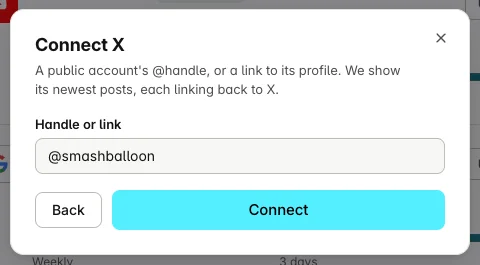
I typed @smashballoon and pressed Connect. By the time the source showed up in my list, it already said "Last fetched just now," which means TileSet had pulled in the latest posts within seconds.
Because your posts are already public, TileSet only reads what anyone can see on your profile. It never signs in as you and never posts on your behalf. That also makes it easy to set up for a client, since you only need their @handle, not their password.
Step 3: Build your widget
The widget is the box of posts that will appear on your site. Open Widgets, press Create widget and pick your X source. You'll then choose between two looks:
- Posts: each post appears as a card with your profile picture, the text, any images and the date, and links back to the original post on X.
- Photos and videos: only posts that include an image or video, shown as square tiles. You can turn on Header to add your profile picture, @handle and a Follow button above them.
Next, pick a layout (grid, carousel, masonry or bento), a light or dark theme, and how many posts to show. The preview on the left shows exactly what your visitors will see.
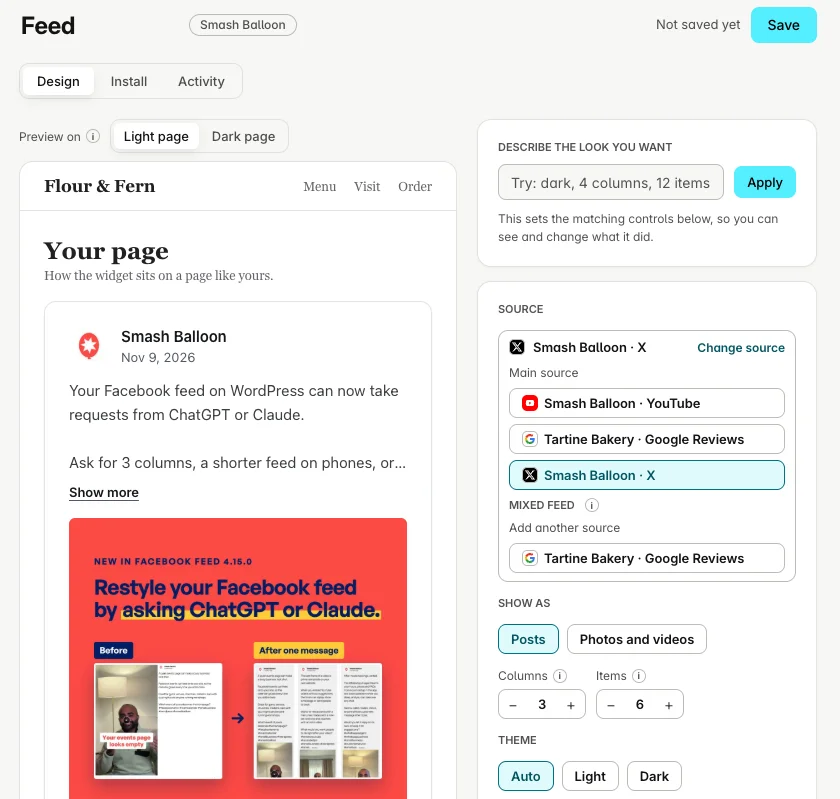
If you'd rather not adjust each setting yourself, there's a box at the top called Describe the look you want. Type something like "dark, 4 columns, 12 items," press Apply, and TileSet sets the matching controls for you. You can still see and change everything it picked.
Two more settings are worth knowing about:
- Include reposts is on by default. Posts you reposted from other accounts appear with a small "reposted" label.
- Include replies is off by default. Turn it on if your replies are useful to visitors, like answers to common questions. Each reply then shows the post it was answering, so it makes sense on its own.
When I switched from Posts to Photos and videos, the builder changed to 4 columns and 8 posts by itself, and the preview became a neat grid of Smash Balloon's graphics and videos.
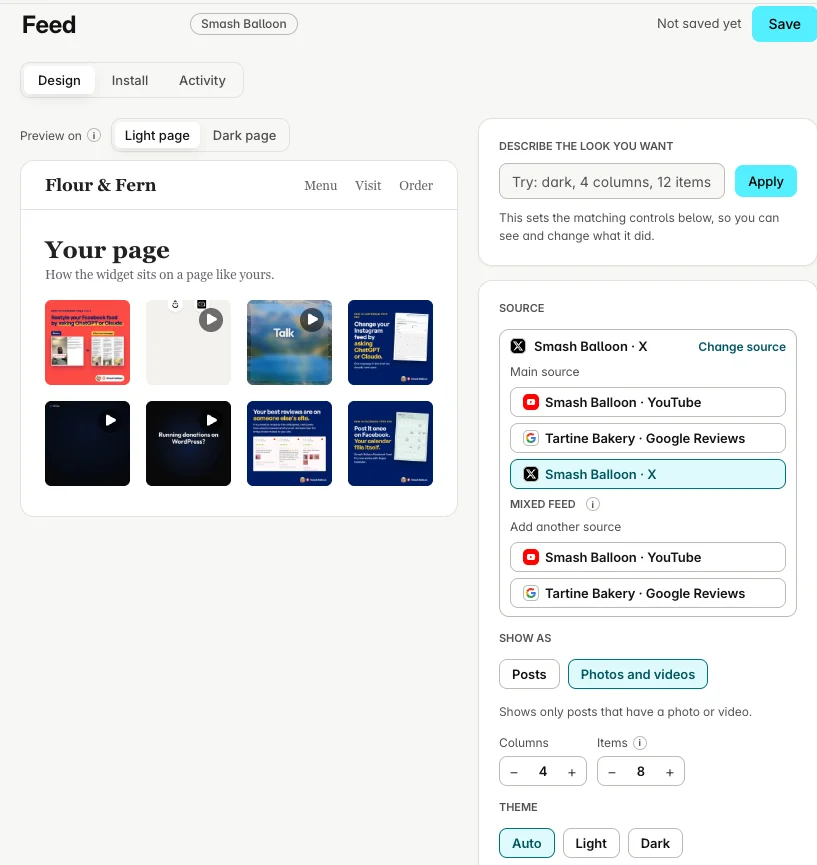
For a homepage, I'd pick the photo grid. Nearly every @smashballoon post includes a graphic or video, so the grid looked full and finished right away. The Posts view showed one large card at a time, with longer posts shortened behind a Show more link, which I think works better on a news or updates page.
If you share videos or GIFs, you may also want to turn on Lightbox. With it on, a video plays in a pop-up right on your page, with a "Watch on X" link underneath. With it off, which is how I first tested it, clicking a tile opens the post on X in a new tab. Videos play straight from X either way, so they don't cost you anything extra.
When you're happy with how it looks, press Save. TileSet takes you straight to the Install tab, where your code is ready.
Step 4: Copy your code
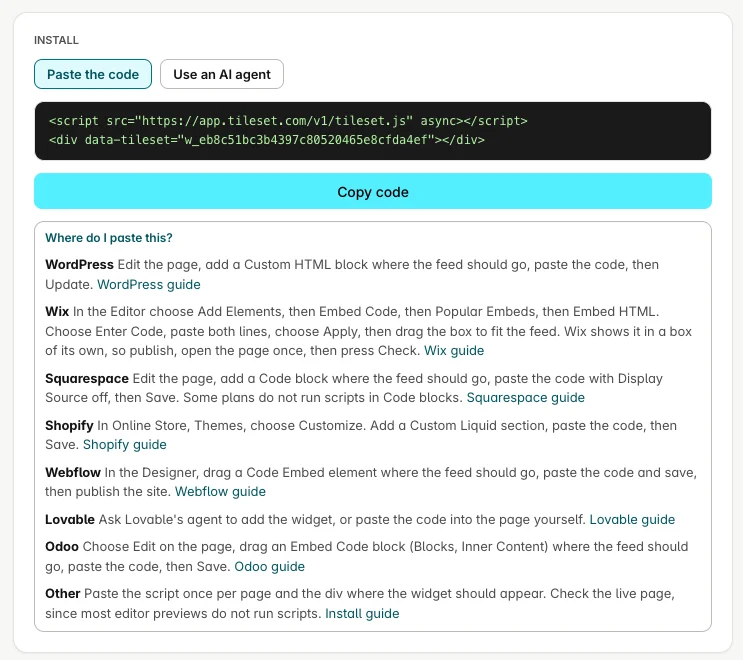
On the Install tab you'll see two lines of code, often called a snippet:
<script src="https://app.tileset.com/v1/tileset.js" async></script>
<div data-tileset="w_..."></div>
The first line loads TileSet, and the second marks the spot on your page where your posts will appear. The letters and numbers after "w_" are your widget's own ID, so it's best to use the Copy code button instead of retyping it. Right below the code, TileSet lists where to paste it for each website builder.
Step 5: Paste it into your site and check it
Paste both lines wherever you'd like your posts to appear. A homepage section works well, and so does a "News" or "Updates" page, since the feed keeps it current for you.
I pasted mine into a simple test page under a "Latest from us on X" heading. The grid appeared a moment after the page loaded, with a play button on each video post.
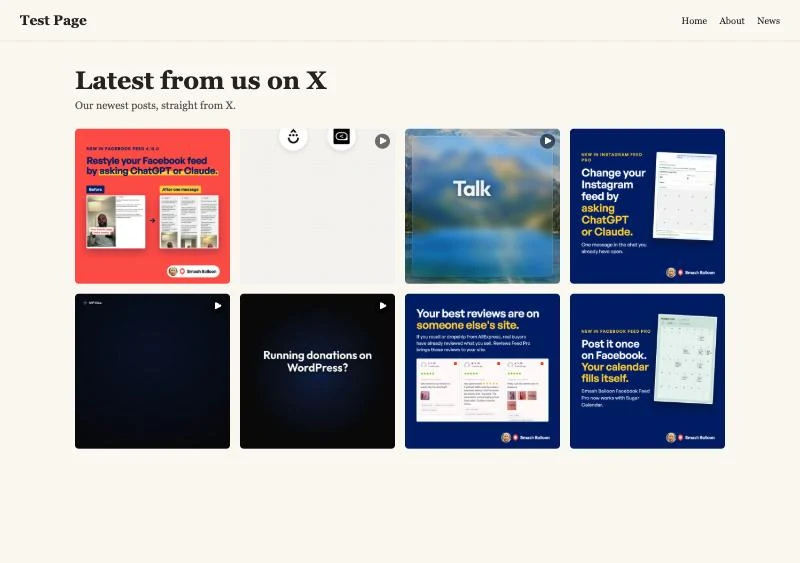
On a phone-sized screen, the grid kept all 4 columns, so each tile was quite small. If most of your visitors browse on their phones, try 2 or 3 columns instead. You can change it any time in the builder, and every page with the widget updates on its own.

Once your page is published, go back to the Install tab, paste your page's web address into Check my page and press Check. TileSet looks at your page the way a visitor would and confirms the widget is there, or tells you what to fix if something's missing. If you're on Wix, open your published page once first, then run the check.
Want your X posts on your site today? Start free with TileSet.
Posts or photo grid: which should you choose?
The right choice depends on what you usually post on X.
Choose Posts if your posts are mostly text, like announcements, opening hours, quick updates or answers to customers. Each post appears in full with the line breaks you used, so it reads like a news feed.
Choose Photos and videos if you share a lot of pictures, like a café posting today's specials or a shop showing new stock. Text-only posts are left out, and the rest become a tidy wall of images that looks great on a homepage.
In my test, the photo grid suited @smashballoon better, because most of its posts are graphics. For an account that's mostly text, Posts would be the better fit.
Where to paste the code on Wix, Squarespace, Shopify and more
The two lines of code are the same on every website. The only thing that changes is where you paste them.
Wix: Add an Embed HTML element (Add Elements, then Embed Code, then Popular Embeds) and paste both lines into that one box. Wix keeps embedded code in its own separate box, so both lines need to go in together. Full Wix guide
Squarespace: Add a Code block, set it to HTML and switch "Display Source" off. Some Squarespace plans don't run code in Code blocks, so if your feed doesn't appear, check whether your plan includes custom code. Full Squarespace guide
Shopify: In the theme editor, add a Custom Liquid section and paste the code in. Most themes from the last few years include this section. Full Shopify guide
Webflow: Drag in a Code Embed element, paste the code and publish. Webflow runs custom code on paid site plans, and your feed appears on the published page rather than inside the Designer. Full Webflow guide
WordPress: Paste it into a Custom HTML block. If you'd prefer a plugin you manage from your WordPress dashboard, Smash Balloon's X Feed plugin does this too.
Framer: Drag in an Embed component, paste both lines into its HTML section, then publish. As with Wix, keep both lines together in the one box. Full Framer guide
Lovable, ChatGPT or plain HTML: Paste the code anywhere in the page body. If you use an AI assistant like Claude, ChatGPT or Cursor and have connected TileSet to it, you can ask in a sentence, for example "Add my X feed to my homepage with TileSet," and it handles the setup for you. Connect an AI agent
Why add your X feed to your website?
A feed lets the posts you already write do double duty. Every update you share on X also appears on your site, so visitors see what's new without leaving your page, and you don't have to update two places.
It also gives your site a sense of what's happening right now. A recent post shows visitors you're active and open for business, which is something a page that rarely changes can't easily do on its own.
The widget is built to stay reliable, too. If X is slow, it keeps showing the last posts it had, so visitors don't see an error. TileSet also doesn't charge for views, so a busy week won't turn your widget off. Joel's X announcement lists everything the X widget can show, and you can see live versions on the examples page.
How often does it update, and what does it cost?
How often your feed checks X for new posts depends on your plan. As a rough guide, the free plan is a good fit if you post a few times a week, and Starter is worth it if you post daily and want your site to keep up the same day.
TileSet uses credits to pay for each check. Think of credits as a monthly allowance: every plan adds some each month, and each update of a source uses a few. Because X charges TileSet for every request, X has its own update speeds on each plan:
| Plan | Price | Fastest X update | Credits each month |
|---|---|---|---|
| Free | $0 | Weekly | 60 |
| Starter | $9 a month | Daily | 500 |
| Growth | $19 a month | Every 6 hours | 1,500 |
| Pro | $49 a month | Every hour | 5,000 |
| Scale | $99 a month | Every 15 minutes | 15,000 |
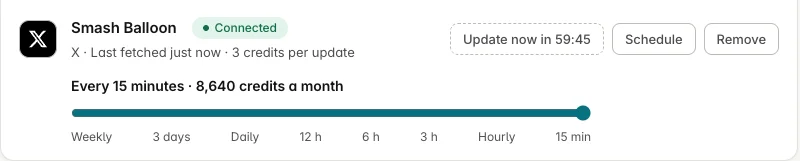
Each X update uses 3 credits. By my math, weekly updates use about 13 credits a month, well within the free plan's 60, and daily updates on Starter use about 90 of its 500. You can choose a slower speed to use fewer credits, and the speed setting shows the monthly cost before you change it. My account is on a paid plan, so my slider went all the way from weekly to every 15 minutes, with "3 credits per update" shown right on the source. On the free plan, it goes up to weekly.
Showing your widget to visitors never uses credits, however many people see it. On the free plan, if nobody views a widget for 14 days, it pauses updates until someone visits again. Paid plans keep updating either way.
Frequently asked questions
Do I need an X developer account to embed my feed?
No. TileSet only needs your @handle, so you don't need a developer account, an API key or any billing setup with X. You don't sign in to X at all.
Can I embed someone else's X account?
Yes, as long as the account is public. This is useful if you build sites for clients, because you only need their @handle, not their password. A free TileSet account can connect up to 10 different X accounts in any 30 days, and paid plans have no limit.
Does it work with a protected account?
No. A protected account's posts are only visible to approved followers, so TileSet can't show them. If you try to connect one, TileSet tells you why it can't.
Will my older posts show up?
TileSet keeps your newest 24 posts. Older posts stay on your site until newer ones replace them, and if you delete a post on X, it disappears from your widget at the next update.
Can I hide reposts and replies?
Yes, for each widget separately. Reposts are on and replies are off by default, and you can switch either one. You could even make two widgets from the same account, for example a full feed on your news page and one without reposts on your homepage.
Is the X feed widget free?
Yes. X is included on every TileSet plan, the free one too, with every layout, unlimited views and no credit card. On the free plan, your feed updates once a week. Paid plans start at $9 a month and update daily or more often.
Start showing your X posts on your site
Connecting your X account takes your @handle and a couple of minutes, and the free plan is enough to try the whole thing on your own site. If you want your feed to update more often later, you can move to a paid plan whenever you're ready.