How to Add a Google Reviews Widget to Any Website
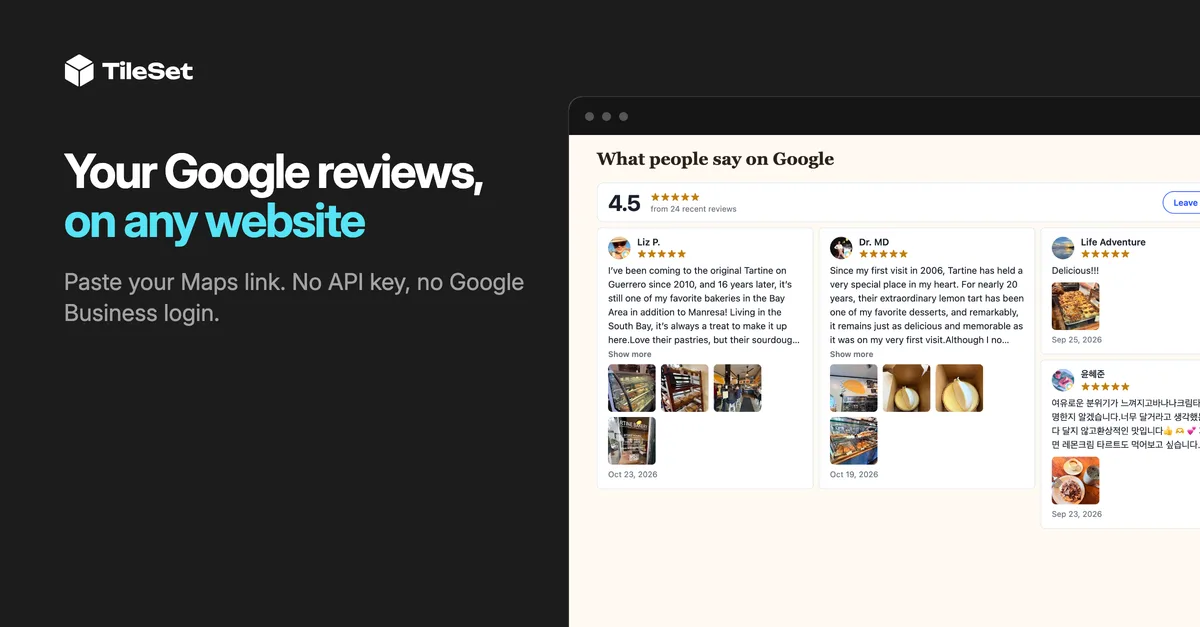
You've got a pile of great Google reviews. Customers took the time to write them. And right now, the only people who see them are the ones who leave your website to go look.
That's backwards. People check your reviews right before they book, buy or call, and that's the exact moment your site sends them off to Google.
I'm on the Smash Balloon team that builds TileSet, and before writing this I set it up myself, using Tartine Bakery in San Francisco as my test business. Connecting its reviews took under 30 seconds. Here's everything I learned along the way, including the parts that surprised me.
How do I add Google reviews to my website?
TileSet, from the Smash Balloon team, is a hosted widget that shows your Google reviews on any website. You paste your Google Maps link (or type your business name), pick a layout and add two lines of code to your site. There's no API key and no Google Business login, and new reviews show up on their own.
It works on Wix, Squarespace, Shopify, Webflow, WordPress and plain HTML, and the free plan covers it with no credit card. Here's exactly how I set it up.
3 ways to add Google reviews to a website
There are really three options, and the right one depends on how much you want to maintain.
| Copy reviews by hand | Build it with Google's API | TileSet Recommended | |
|---|---|---|---|
| How long does setup take? | A few minutes per review, every time | Developer work, plus an API key and Google Cloud billing | Under a minute to connect, once |
| Do new reviews show up on their own? | No, you paste each new one in yourself | Only if you build and host the refresh | Yes, on the schedule you pick |
| Do you need an API key? | No | Yes, and a billing account | No, just your Maps link |
| Does it work on Wix, Squarespace and Shopify? | Yes, it's just text | Depends on what your developer builds | Yes, same two lines everywhere |
| What happens if Google is down? | Nothing, it's static | Blank, unless you build a cache | Keeps showing your last reviews |
| Best for | One or two quotes that never change | Teams that need review data in their own database | Anyone who wants live reviews without maintaining them |
If you just want one glowing quote on your homepage, copying it by hand is honestly fine. If you have a developer and need the raw data, build it. For everyone else, a hosted widget means you set it up once and stop thinking about it.
How to add a Google reviews widget with TileSet
Before the steps, here's what you're getting into:
- You need your Google Maps link or your business name. No API key, no Business Profile login.
- The free plan includes 3 live sources and unlimited views, with no credit card.
- The whole widget is two lines of code: one script tag and one div.
- Google reviews refresh at most once a day, on a schedule you choose.
- If Google has a bad day, your widget keeps showing the reviews it already has.
Step 1: Sign in to TileSet
Go to TileSet and sign in with your Google account, or ask for a sign-in link by email. There's no password to make up and no card to enter, so you can try the whole thing before deciding anything.
Step 2: Add your Google reviews as a source
Go to Sources, press Add source and pick Google Reviews. Then paste your Google Maps link, or type your business name with its city.
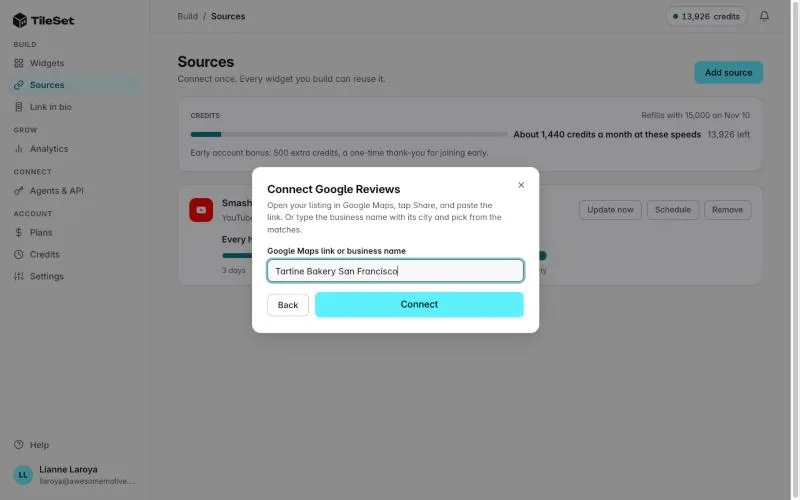
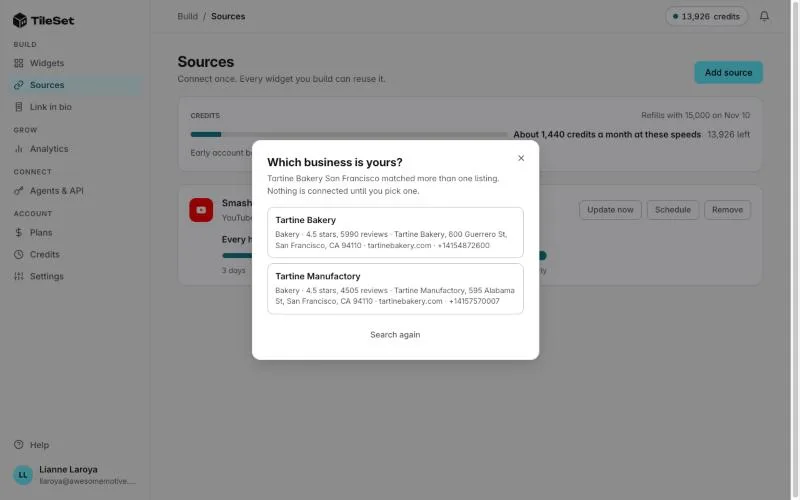
I typed "Tartine Bakery San Francisco" instead of pasting a link, and TileSet came back with two matches: the original bakery on Guerrero St and Tartine Manufactory. Each one showed its star rating, review count and address, so picking the right one took a second. Nothing connects until you choose, which I liked. If your business has more than one location, this is where you'll see it.
About 30 seconds later it said "Tartine Bakery is connected," and the first reviews were already in.
No Google Business login? No problem. Your reviews are already public, so the Maps link or business name is all TileSet needs. That also means you can set this up for a client without asking for their password.
Step 3: Build your widget
Open Widgets and press Create widget, then pick your Google source. Choose a layout (grid, carousel, masonry or bento), how many columns and reviews to show, and light or dark to match your site. The preview is exactly what your visitors will see.
Two settings I'd turn on straight away are Rating summary and Leave a review button, under Review header. That puts your star average at the top, with a button that opens Google's write-a-review page for your business.
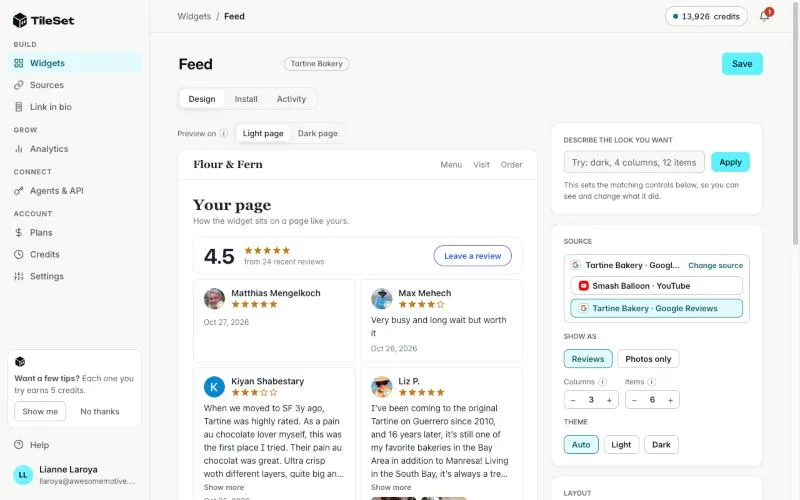
Then I played with layouts. Personally, I ended up on masonry, with 4 stars and up and only reviews with photos, since a bakery's reviews sell harder with a photo of the actual pastry attached. When I tried bento, its big square went to a 5-star review with no text, just stars, which looked a bit empty. Masonry with photos fixed that.
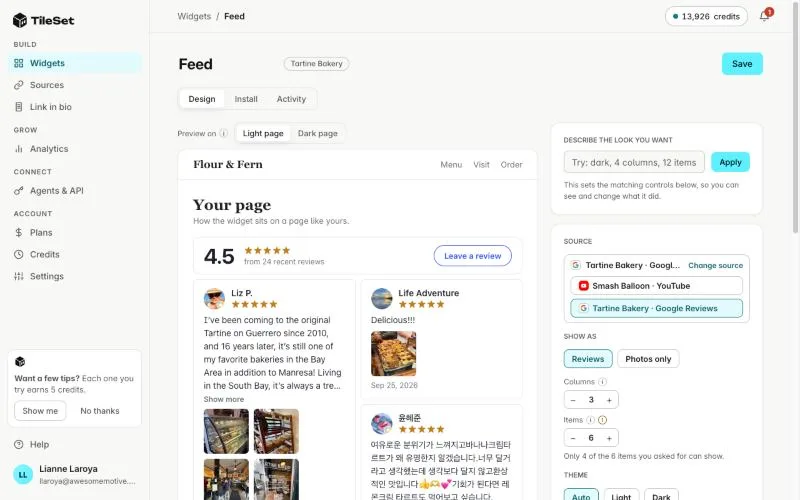
The builder is also upfront when a filter is too strict. With both filters on, it told me only 4 of the 6 reviews I asked for could show, so I knew to loosen it or show fewer. Press Save when you're happy.
Step 4: Copy the snippet
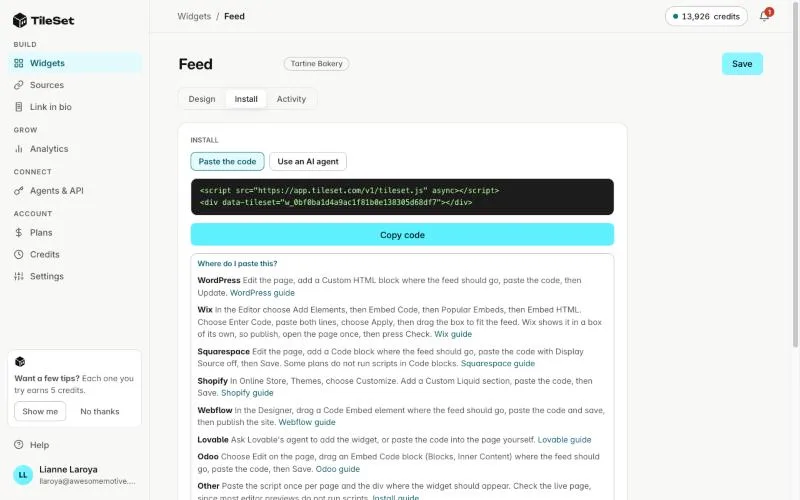
Your widget's Install tab has the code. It's two lines:
<script src="https://app.tileset.com/v1/tileset.js" async></script>
<div data-tileset="w_..."></div>
Use the Copy code button rather than typing it out. The id at the end is unique to your widget, and one wrong character means nothing shows. Right under the code, there are short paste instructions for every major site builder.
Step 5: Paste it into your site and check it
Paste the snippet where you want your reviews to appear. Put it close to the decision: next to your booking button, on your pricing page or near checkout. That's where reviews actually change minds.
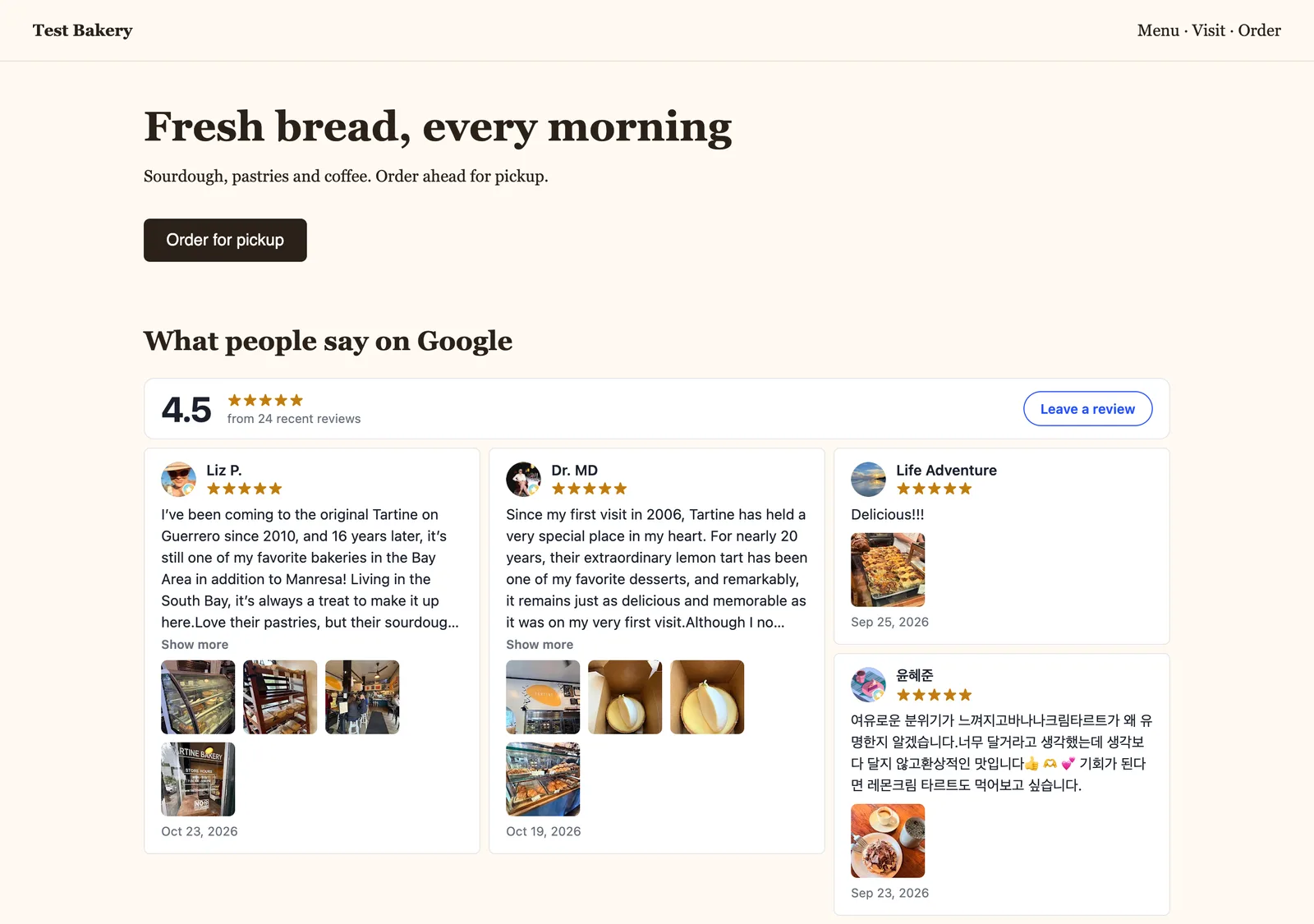
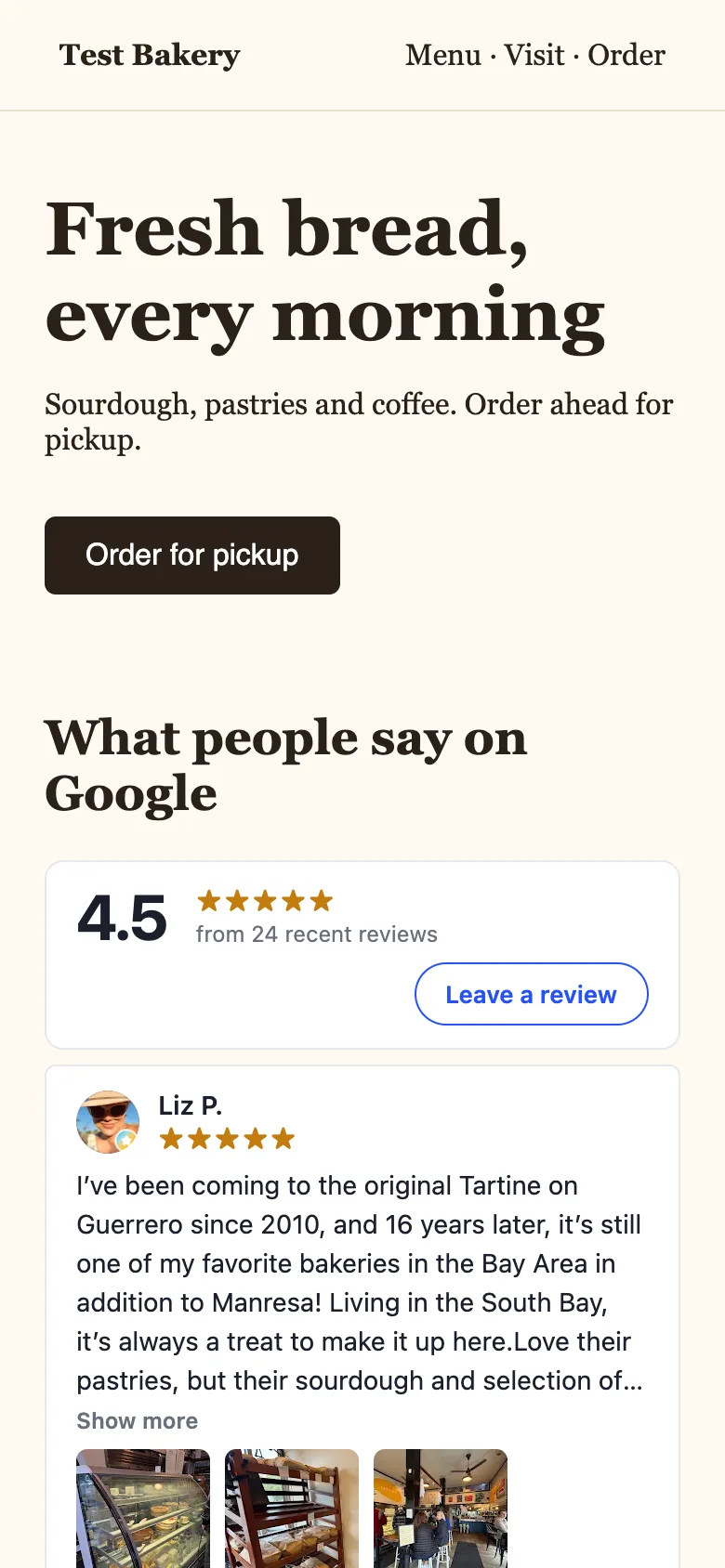
I pasted mine into a simple test page for a bakery, right under an "Order for pickup" button. The reviews loaded as I scrolled down to them, and on a phone-sized screen they stacked into one tidy column.
Once your page is live, go back to the Install tab, paste the page's address into Check my page and press Check. TileSet reads your page the way a visitor would and tells you if anything's missing, with the exact fix.
Worried you'll paste it in the wrong place? You'll know right away. That check is the reason.
Want your Google reviews on your site today? Start free with TileSet.
Where to paste it on Wix, Squarespace, Shopify and more
The snippet is the same everywhere. What changes is where it goes.
Wix: Add an Embed HTML element (Add Elements, then Embed Code, then Popular Embeds) and paste both lines into that one box. The box doesn't grow on its own, so drag it tall enough and check the published page on your phone. Full Wix guide
Squarespace: Add a Code block, set it to HTML and switch "Display Source" off. Squarespace only runs code blocks on some plans, so if yours stays empty, check that your plan includes custom code. Full Squarespace guide
Shopify: In the theme editor, add a Custom Liquid section and paste the snippet in. Add it to your product template, right under the Add to cart button, and every product page gets your reviews. Full Shopify guide
Webflow: Drag in a Code Embed element, paste and publish. Webflow only runs custom code on paid site plans. Full Webflow guide
WordPress: Paste it into a Custom HTML block. If you'd rather have a plugin that lives inside WordPress, Smash Balloon's Reviews Feed does this too.
Lovable, ChatGPT or plain HTML: Paste it anywhere in the page body, or just ask your AI agent. TileSet connects to Claude, ChatGPT, Cursor and Lovable, and the agent can connect your reviews, build the widget and check it's showing. Connect an AI agent
Why your Google reviews belong on your website
I keep coming back to the same point. Your reviews are already doing their job on Google. They're just not doing it on your site, where you'd actually like the sale to happen.
Once they're on your page, visitors see real customers vouching for you without opening a new tab. New reviews show up on their own, so your site never looks like it stopped getting customers in 2023. And you don't have to babysit it.
It also doesn't break on you. If Google is slow or limits requests, the widget keeps showing the last reviews it fetched, so nobody sees an error. TileSet doesn't count views either, which means a busy week can't switch your widget off. Joel's launch post explains why TileSet works that way.
What can the widget show?
Each card shows the reviewer's name and photo, their stars, the date and the review. Long ones fold behind Show more. You can add your star average and a Leave a review button on top, show your replies under each review, or build a photo grid from just the pictures customers added.
On the Growth plan and up, you can filter: 4 stars and up, only reviews with photos, or only reviews that mention a word. The use I like most is one set of reviews feeding different pages: everything on your homepage, and only the "wedding" reviews on your wedding page.
One thing worth knowing: the star average is worked out from the recent reviews TileSet has fetched, not your whole history. Mine said "4.5 from 24 recent reviews" for a bakery with almost 6,000 reviews on Google. It matched Google's own 4.5, but if your recent reviews are better or worse than your overall rating, the number on your site will show that.
You can see more on the live examples page.
Will it show my bad reviews too?
Yes, unless you turn on a star filter. TileSet shows reviews exactly as Google has them. When I first connected Tartine, two of the six newest reviews were 3 stars, one of them about a $7 pain au chocolat.
I actually think that's fine. A wall of nothing but five stars looks too good to be true. A calm reply to a tough review tells visitors more about how you treat people than ten glowing ones. And if you'd rather lead with your best, the star filter is one click.
How often do the reviews update?
You pick the schedule, from once a day to once a week. Google reviews update at most once a day on every plan.
On the free plan, I'd set a Google source to update weekly rather than daily. Google reviews cost more credits to refresh than other sources, since the data comes from a paid provider. My test showed 8 credits per update, which works out to 240 a month if you updated daily, and the free plan only gives you 60 credits a month total. Weekly is the realistic setting until you're on a paid plan, and if you want daily updates, that's where paid comes in. Showing the widget to visitors never costs you anything, no matter how many people see it.
On the free plan, if nobody views a widget for 14 days, it pauses updates until the next visit. Paid plans keep updating either way.
Frequently asked questions
Do I need a Google API key to show my reviews?
No. TileSet works from your Google Maps link or business name, so there's no API key, no Google Cloud account and no billing setup.
Do I need to sign in to my Google Business Profile?
No. Your Google reviews are public, so the Maps link is enough. That's handy for agencies, since you can set it up for a client's business without their login.
How do I find my Google Maps link?
Search your business on Google Maps, open the listing and press Share, then copy the link. Or skip it: type your business name and city into TileSet and pick your listing from the matches.
Is the Google reviews widget free?
Yes. TileSet's free plan includes 3 live sources, every layout and unlimited views, with no credit card. Paid plans start at $9 a month and add faster updates, more credits and the option to hide the small "Shown with TileSet" link.
Can I show only my 5-star reviews?
Yes, on the Growth plan and up. You can filter by star rating, by reviews with photos or by a keyword. I'd go with a 4-star minimum over 5, since a few 4-star reviews make the wall more believable.
Will a reviews widget slow down my site?
It's built not to. TileSet's script is under 10 KB compressed, sets no cookies and only loads a widget as it scrolls near the screen.
Start showing your Google reviews now
Your customers already did the hard part by writing the reviews. Now they just need to be where people make up their minds.
Connecting your reviews takes under a minute on the free plan, and you don't need a card or an API key.